
Samsung The Frame · Art Mode guide
How to set up Samsung The Frame Art Mode with your own digital art
A calm, practical setup guide for turning the screen into part of your room — from choosing the image to the settings that make it feel intentional.
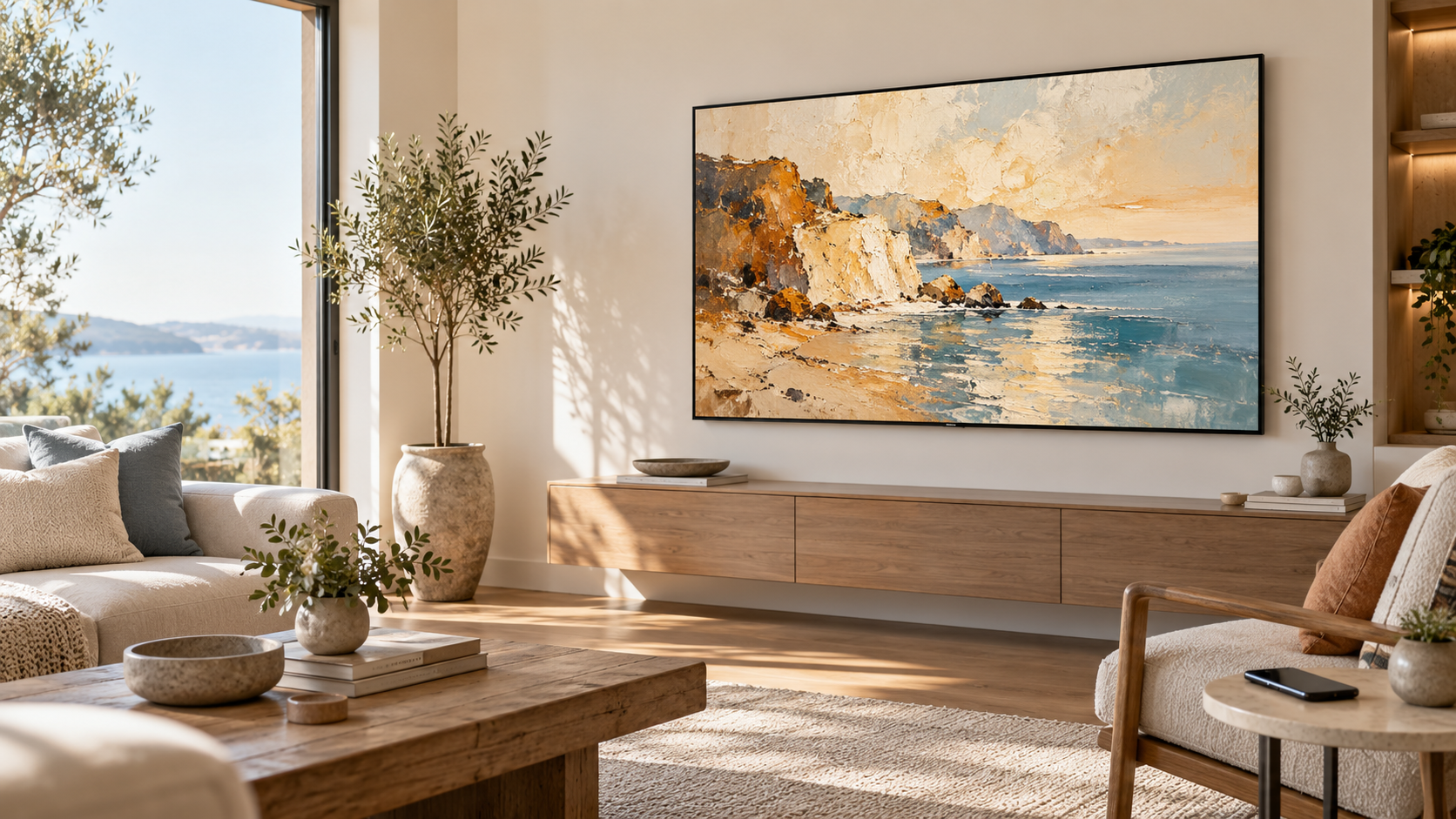
1. Prepare the artwork before you upload it
The best-looking result starts before the TV is involved. Choose an image that has enough breathing room and feels right at a distance. A detailed illustration that is beautiful on a laptop can become busy from across the room.
Match the shape
For a full-screen landscape display, begin with an image that matches a 16:9 screen. Crop deliberately rather than letting the TV make the decision for you.
Check it from a distance
Open the image full-screen and step back. Strong shape, tonal contrast and a clear focal point usually survive a room better than tiny detail.
Leave room for the frame
If you plan to use a matte or mount treatment, avoid placing an important face or edge too close to the perimeter of the artwork.
Vogarti note: a room does not need the loudest image. Start with one artwork that echoes a colour already present in the space, then change the mood seasonally rather than changing it every day.
2. Choose the easiest upload route
Samsung supports two practical ways to add your own images. Use the phone route for convenience; use USB when you are moving a prepared set of files.
Add the TV in the SmartThings app, open its Art Mode controls, choose Add Your Photos, select the image and save it to The Frame.
Connect the drive to the One Connect Box. In Art Mode, open My Collection, choose the USB device, then select and save the images you want to keep.
Do not remove the USB drive while the files are saving. Samsung’s menu names and available display treatments can vary by model, software version and region, so use the on-screen wording on your own TV if it differs slightly.
3. Make Art Mode feel considered
Uploading the file is the technical part. These three settings make the result feel like it belongs in the room.
- Try the treatment before deciding. Test the image with and without a matte or mount. The “correct” choice is the one that gives the artwork enough space without turning the screen into a framed screenshot.
- Use the room behaviour settings. Art Mode includes options such as Night Mode, Sleep After and motion sensitivity on supported models. Tune these so the screen does not glow after the room has gone quiet.
- Keep a small rotation. A group of three to five images is enough for a thoughtful slideshow. Too many unrelated files can make the screen feel like a photo folder instead of a collection.
Try the process with a free file
Start with one calm artwork.
Use a finished 4K Vogarti image as your first Art Mode test, then judge it from the sofa at different times of day.
Open free 4K TV art4. Common setup misses — and what to do instead
- Why does my image have unexpected borders?
- The file shape and the chosen display treatment may not match. Start with a deliberate landscape crop, then test the matte or mount options rather than trying to hide the mismatch.
- Why is the artwork too bright at night?
- Review the Art Mode room settings. Lower the room light, then test Night Mode and the sleep behaviour. The goal is not a permanently illuminated wall.
- Can I use the same image in a slideshow?
- Yes. Samsung documents slideshow support for saved personal photos. Keep the selection small and visually related for a calmer effect.
- My menu does not look exactly like this guide. Is something wrong?
- Probably not. Samsung notes that availability and menus can differ by model and region. Follow the same route — Art Mode, personal photos or collection, then save — using the labels on your screen.
Sources and further help
This guide was written for a real setup task and checked against Samsung’s current support instructions. For model-specific screens or account issues, use Samsung’s own support pages:
Samsung and The Frame are trademarks of Samsung. Vogarti Vibe is independent and is not affiliated with Samsung.